If you find an error or outdated information in the body of a knowledge entry, you can select that section and submit a "flag."
This article summarizes how the flagging system works and its specifications.
Overview
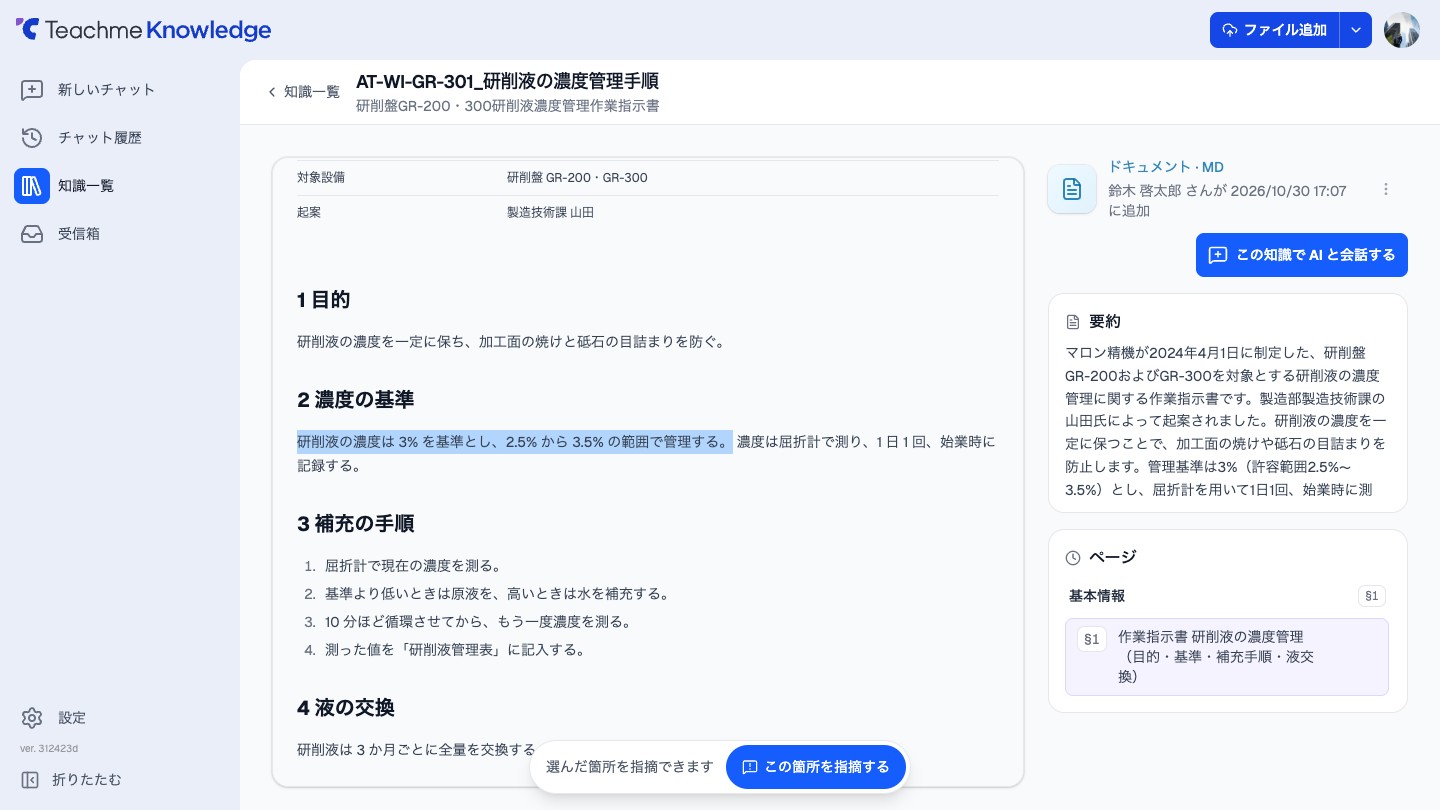
When you select a range of text in the knowledge detail screen, "Flag this section" will appear at the bottom of the screen.
Choose a type ("Contains an error" or "Information is outdated"), write a brief reason, and submit the flag — the flagged section will no longer be used as a definitive basis for answers in AI Chat.
You can submit a flag even if you do not know the correct answer.
Flagging does not overwrite the original file.
Specifications
Knowledge that can be flagged
- You can flag the body of knowledge entries in Text (.txt), Markdown, and Release notes formats.
- Knowledge entries in PDF, Word, Excel, PowerPoint, image, video, or audio formats cannot be flagged because their body text cannot be selected.
Who can flag
Anyone who can view a knowledge entry can flag, resolve, or re-flag it.
Permission to edit the knowledge metadata is not required.
Selectable range and reason
- The selectable range must be at least 8 characters and no more than 500 characters.
If too short, the message "Please select a slightly longer range" will appear; if too long, "The selected range is too long. Please keep it within 500 characters" will appear, and the flag cannot be submitted. - A reason is required and can be up to 200 characters.
Flag panel and history
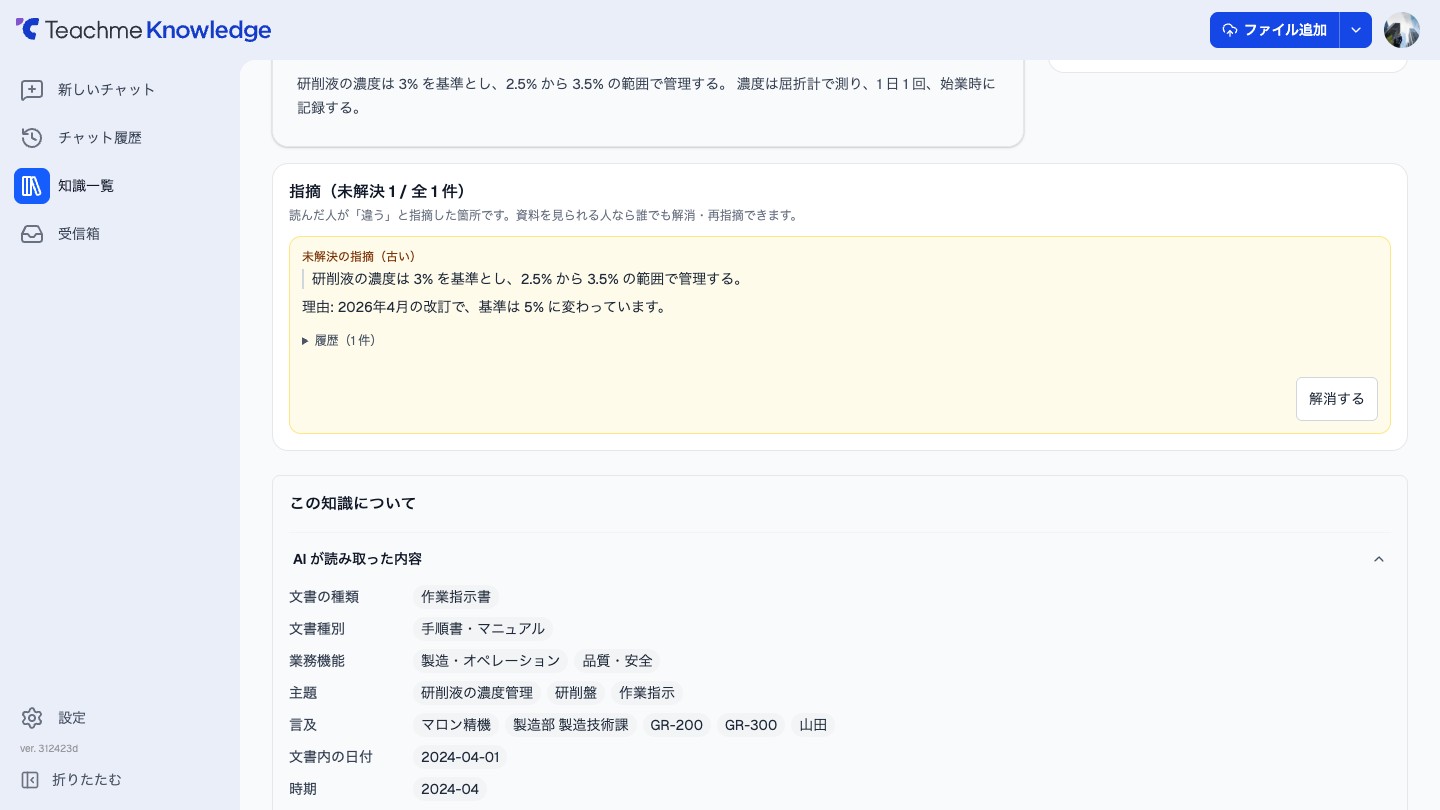
On the detail screen of a knowledge entry that has flags, a "Flags (Unresolved ◯◯ / Total ◯◯)" panel will appear above "About this knowledge entry."
For each flag, the status ("Unresolved flag (error)," "Resolved (outdated)," etc.), the selected section, and the latest reason are displayed.
Clicking "History" lets you check the name, date and time, and reason of each person who flagged, resolved, or re-flagged.
-
Resolve…Marks an unresolved flag as resolved.
Write a brief reason, such as the flag being inaccurate or the source material having been updated. -
Re-flag…Returns a resolved flag to unresolved status.
Write a brief reason.
Flags, resolutions, and re-flags are displayed with the person's name and date/time to all users who can view that knowledge entry.
If the flagged section cannot be found in the current body text, the message "This section cannot be found in the current body text. The source material may have been updated, and this is not yet reflected in Chat answers." will be displayed.
How flags affect AI Chat answers
Sections with unresolved flags will no longer be used as a definitive basis for AI Chat answers.
Knowledge entries with flags are not excluded from search or AI Chat.
If a flag exists in the range of source material used as the basis for an answer, "There are ◯◯ flags on the range of source material used for this answer" will appear below the answer, along with flag cards ("Error flag" or "Outdated information flag").
If there are 2 or more, clicking them will expand the cards.
Each card displays the selected section, reason, and the name and date of the person who flagged it, and you can open the knowledge detail screen via "Check in '◯◯'" (where ◯◯ is the heading of the relevant section shown under "Page" in the knowledge detail screen).
Since the source material range may include sections not used in the answer, flags unrelated to the answer content may sometimes be displayed.
If a flag is later resolved, reopening the Chat will show the message "This flag has since been resolved."
How to use
Flag errors or outdated information in the body of a knowledge entry
https://teachme.jp/8/manuals/51770629
Resolve or re-flag a flag
https://teachme.jp/8/manuals/51770652
Related
Tell me about the knowledge detail screen
https://help.knowledge.teachme.jp/hc/ja/articles/62831258124697
Tell me about AI Chat
https://help.knowledge.teachme.jp/hc/ja/articles/62831234182297
Tell me about knowledge permissions
https://help.knowledge.teachme.jp/hc/ja/articles/62831324651161